Copper
A menu-bar scratchpad for AI-assisted work, stored in one Markdown file
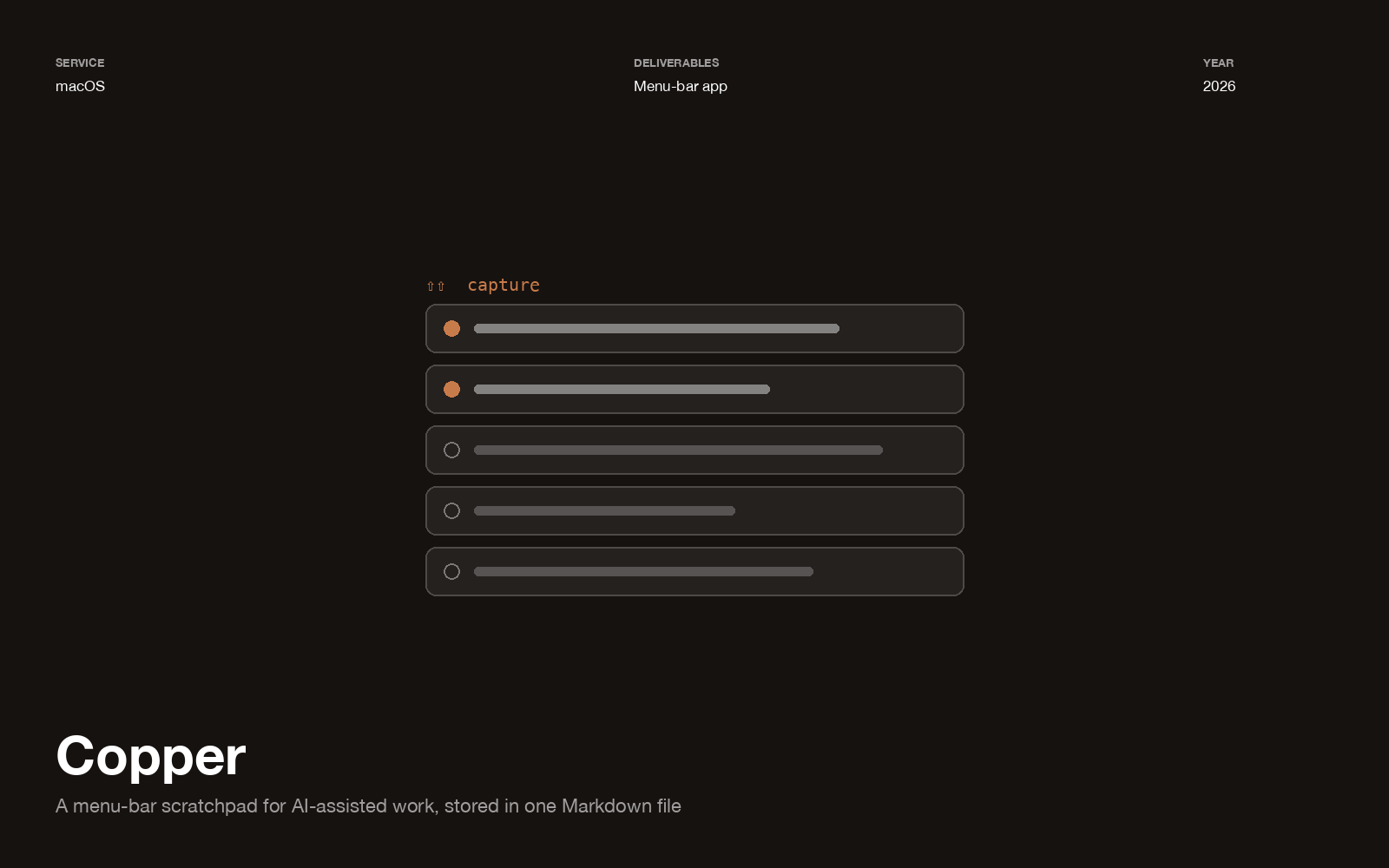
Working with an AI assistant all day produces a specific kind of debris: half-written prompts, snippets worth keeping, links you’ll want in ten minutes, things to try next. Notes apps are too heavy for it and the clipboard is too shallow. Copper is the thing in between.
Double-tap ⇧ anywhere in macOS and whatever is selected gets captured. Type at the bottom to add a prompt or a note. Work down the list and check things off.
One file, no account
Everything lives in a single local Markdown file. No sync, no sign-in, no telemetry — you can open the file in any editor and it reads as a document, because it is a document.
There is exactly one exception and it’s written into the README rather than buried: hovering a captured video streams it from the site it came from. Everything else — capture, images, storage, search — never leaves the machine, and the streaming can be switched off.
Designed for the keyboard, so the shortcuts had to be discoverable
There’s no menu bar to hang a shortcut list from, so the cheat sheet lives inside the app on ⌘/. That single decision drove the interaction model: if every action has a key and the key list is one press away, the UI doesn’t need buttons for things.
| Action | Key |
|---|---|
| Capture the selection | double-tap ⇧ |
| Add a note or prompt | type, then ⏎ |
| Extend / adjust selection | ⇧↑ ⇧↓, ⇧-click, ⌘-click |
| Copy · copy as bullets | ⌘C · ⇧⌘C |
| Mark done | space or ⌘D |
| Edit inline · in a window | ⌘E · ⌘⏎ |
| Merge into one note | ⇧⌘M |
| Search | ⌘F |
The double-tap
Global capture usually costs a hotkey — and every good hotkey is already taken. Double-tap of a modifier key is free: it’s a gesture no app claims, it needs no chord, and it works with your hand already resting where it was. The cost is that it must never fire on a normal shift press, which is most of what the input handling actually does.